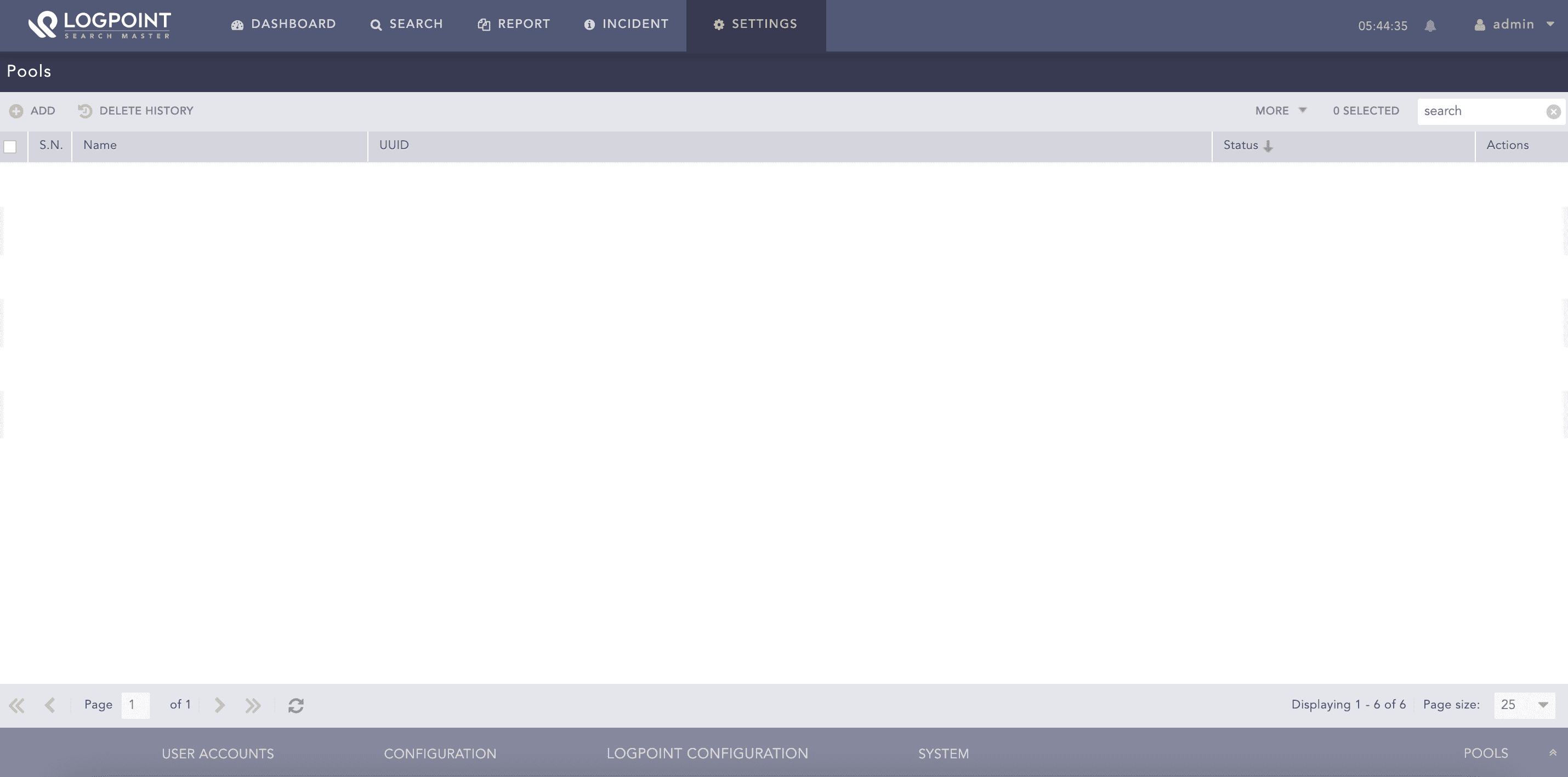
A Logpoint Pool is a group of Fabric-enabled Logpoints. There can be many physically separated Logpoint instances nested in a pool that can be accessed and configured from a central location. Each Logpoint Pool has its unique identifier called Universal Unique Identifier, UUID which is auto-generated. Before you configure Logpoint Pools, you need to configure Fabric Network. You can create and manage Logpoint Pools from Logpoint Search Master(LPSM).
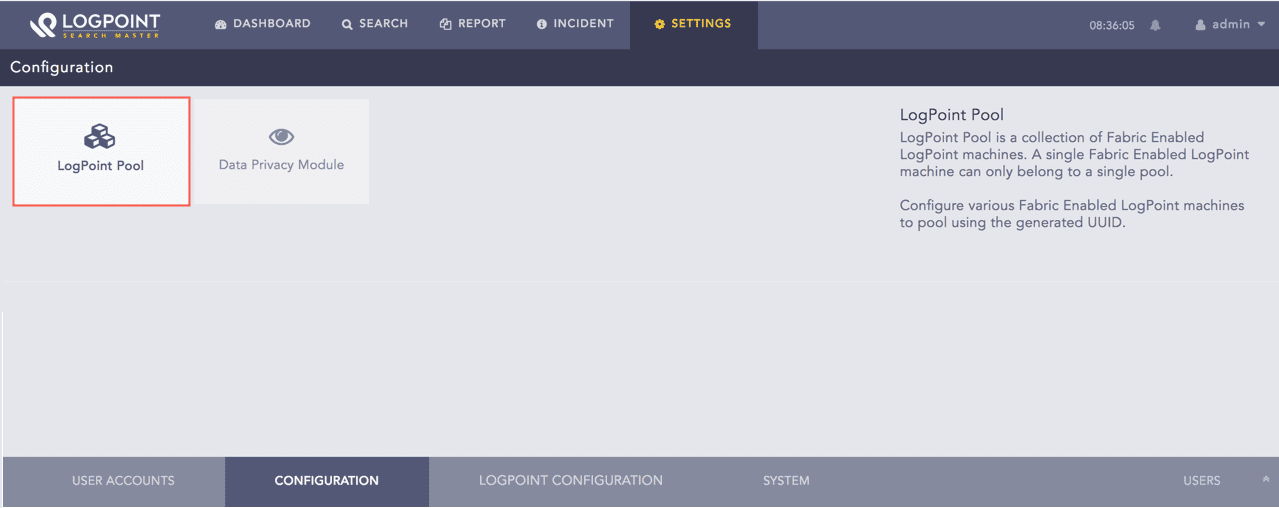
Logpoint Pool
A User Account Administrator and an LPSM Administrator can create, view, edit, and delete all pools. A custom LPSM user can create and manage pools based on the pool permissions of the corresponding user group. For more details, go to User Groups.
In Pools, find the name of the pool in the list and select it.
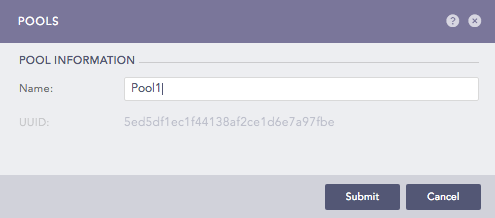
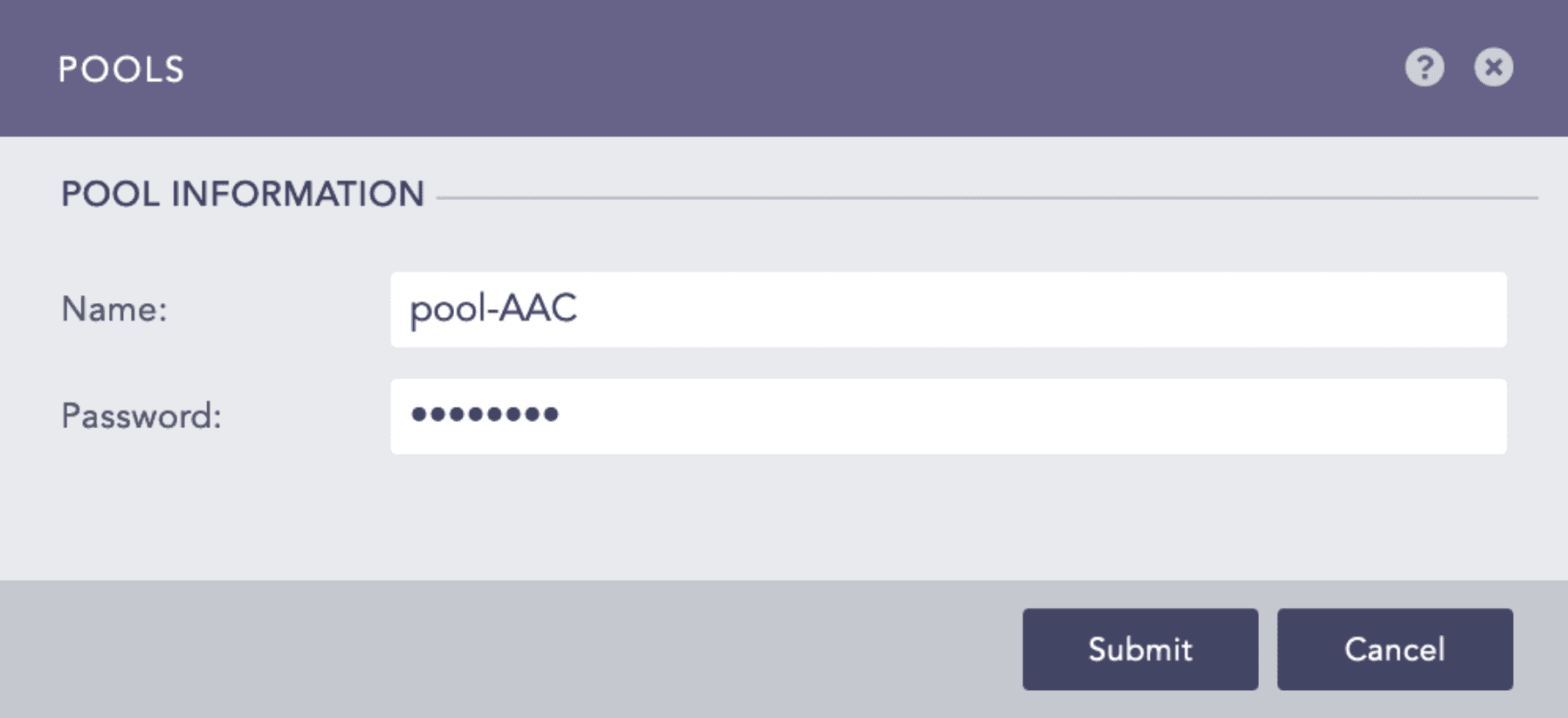
Changing the Pool name
Edit the pool’s Name.
Click Submit.
Click the Change Password ( ) icon from Actions.
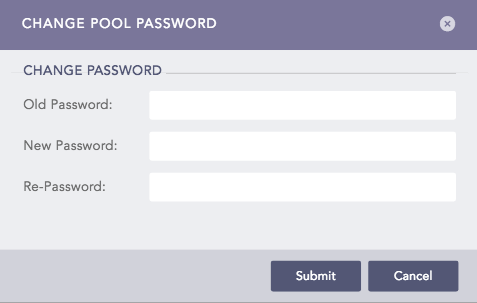
Change Pool Password
Enter your old password in Old Password and the new password in New Password and Re-Password.
Click Submit.
Once the pool password is updated, the password must be changed in Fabric Connect for the Fabric-enabled Logpoints connected to the pool. On the Fabric-enabled Logpoint instances:
Go to Settings >> System from the navigation bar and click Logpoint Director.
Enter the new pool Password in the Fabric Connect tab.
Click Save.
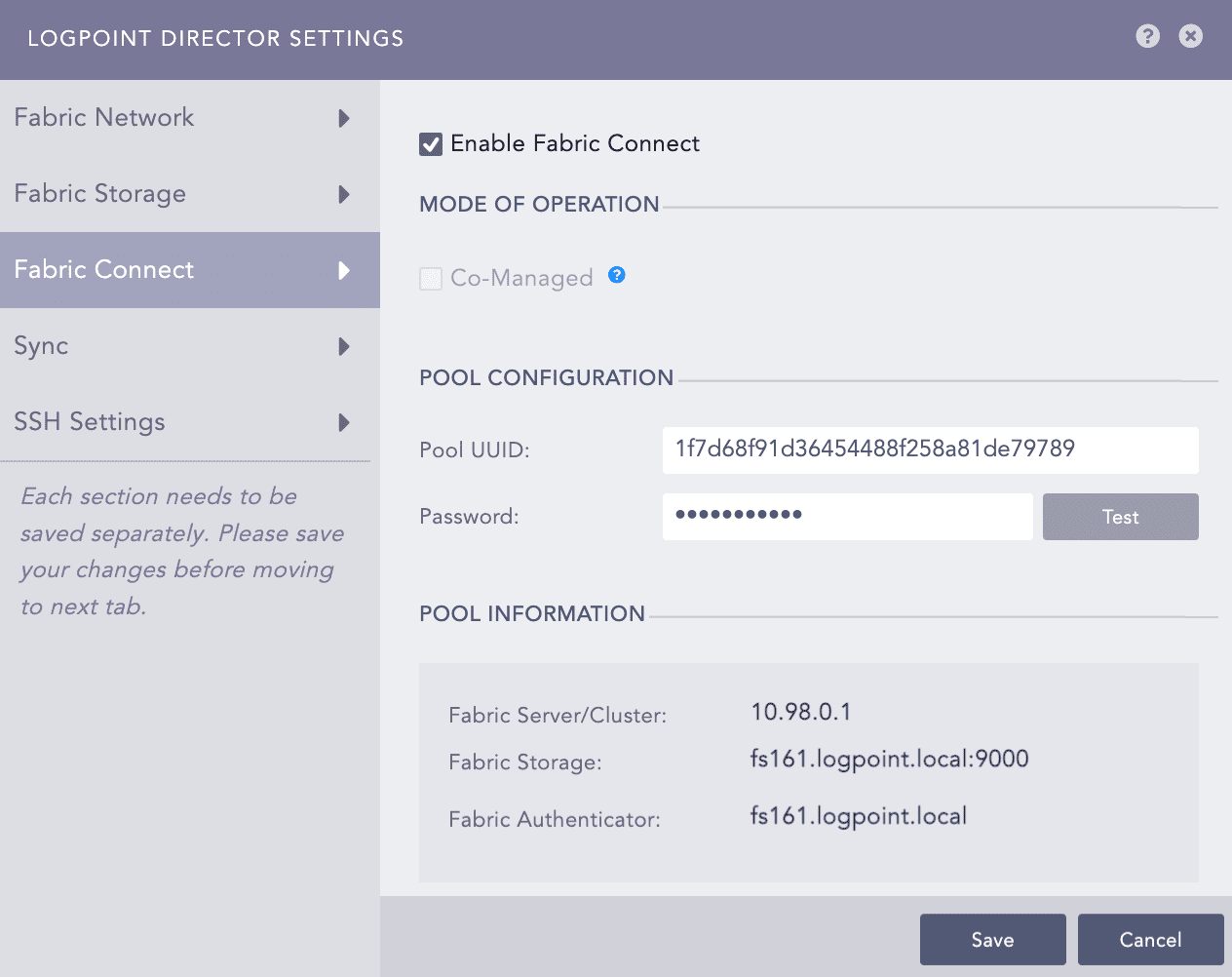
Save Password
Make sure that no API requests are scheduled for the connected Fabric-enabled Logpoints when the pool password is being changed. Changing the pool password before the completion of scheduled API requests leads to errors during execution.
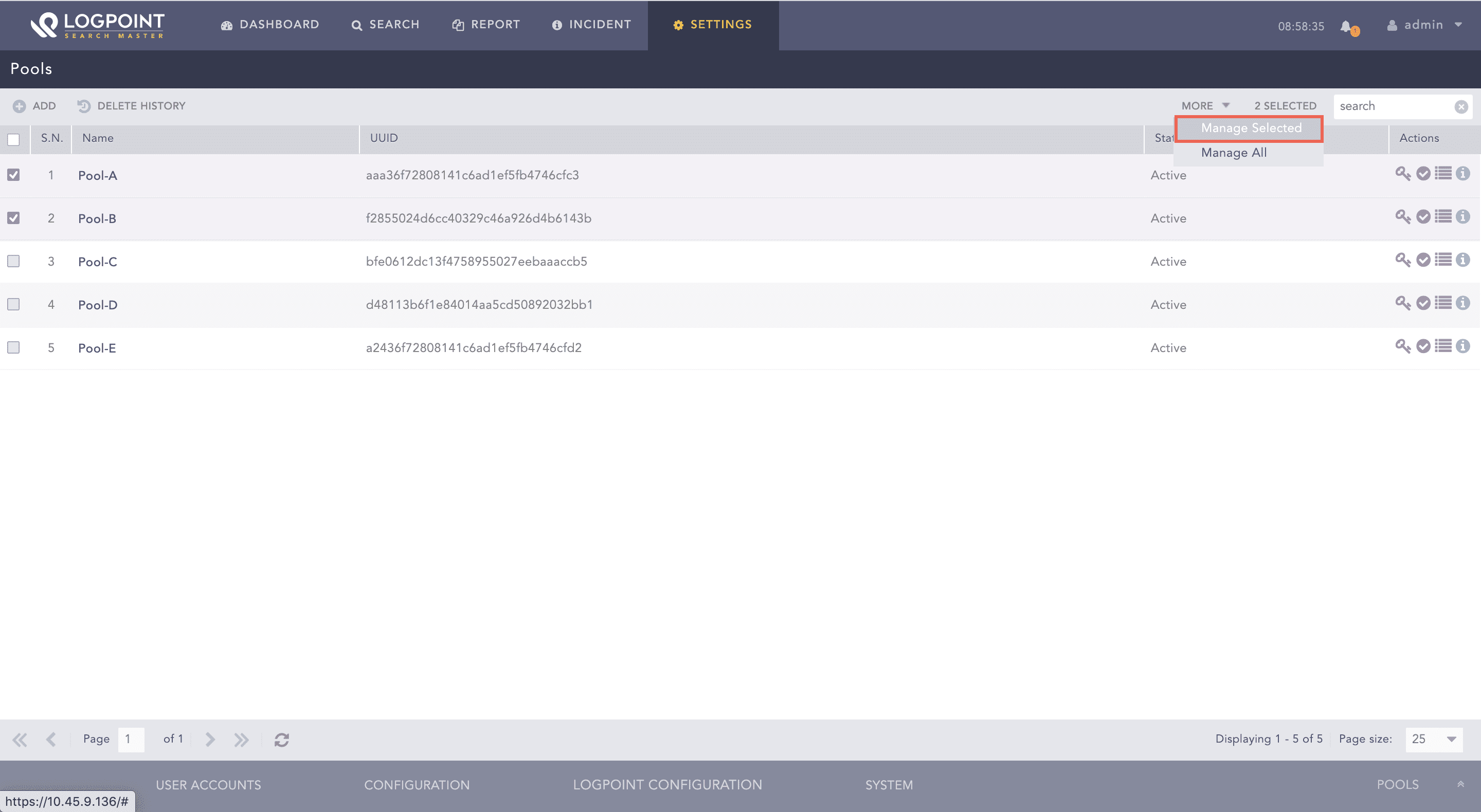
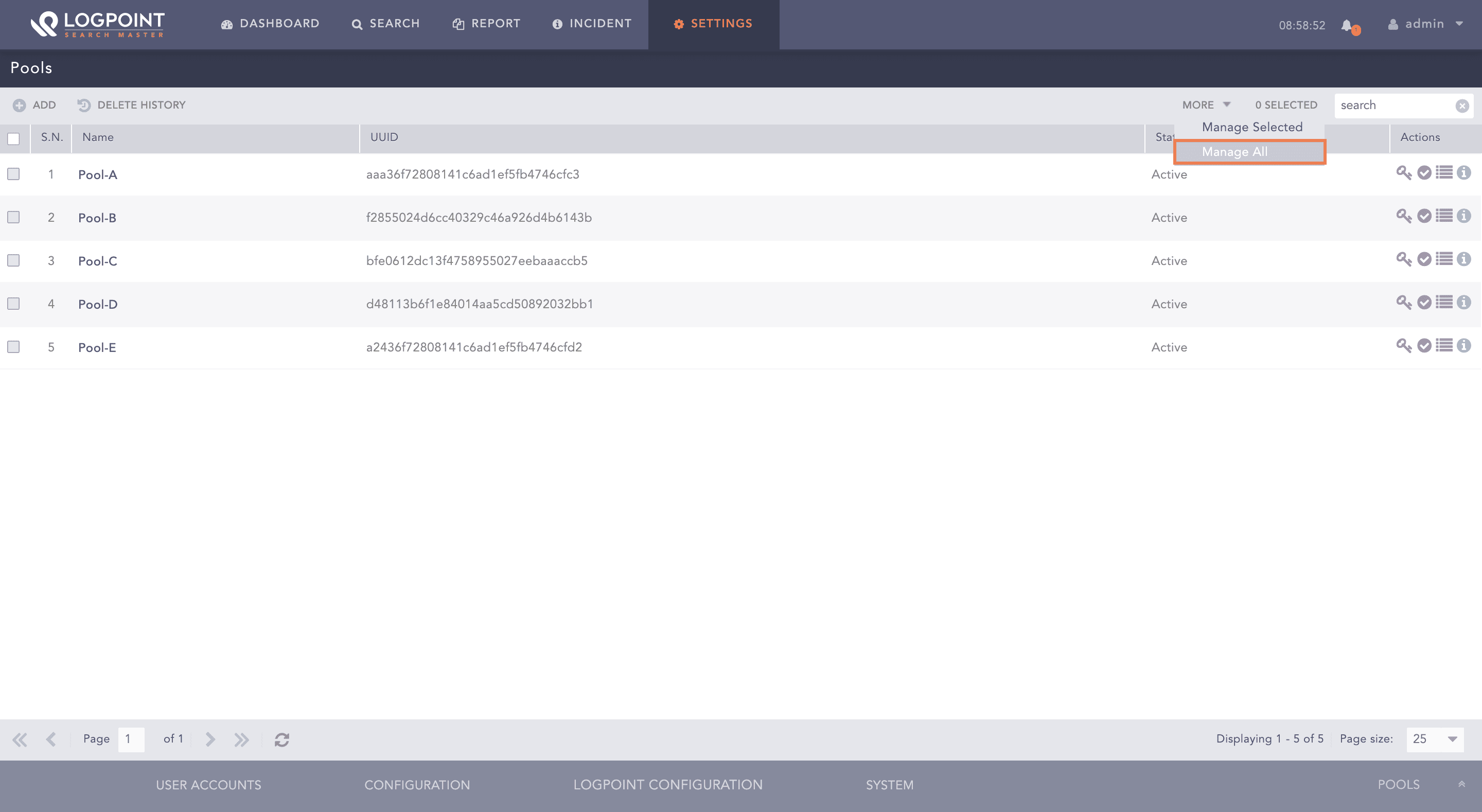
You can list the pools, view the status of the machines in the pool and delete pools or machines in the pool from Manage Pool and Machines. You can only delete any pool without any machines or machines with Unavailable or Obsolete status.
Go to Settings >> Configuration >> Logpoint Pool.
Click the Manage Pool and Machines icon from Actions.
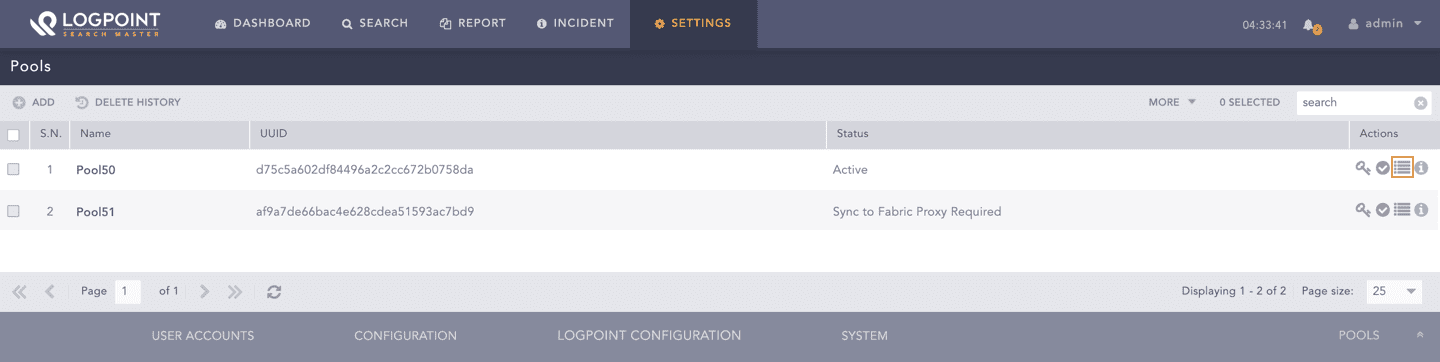
Manage Pool and Machines
Select the pools and machines that you want to delete.
Click Delete.
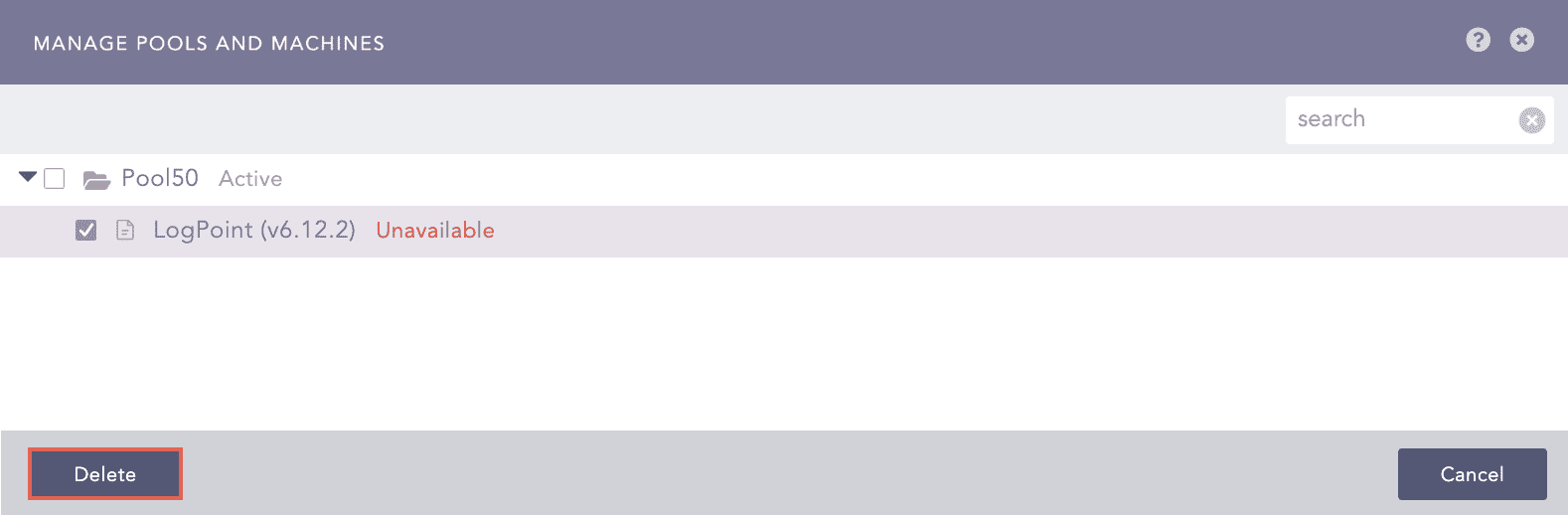
Delete Pools and Machines
To check the delete history of the pools and machines, click Delete History.
Pool Delete History